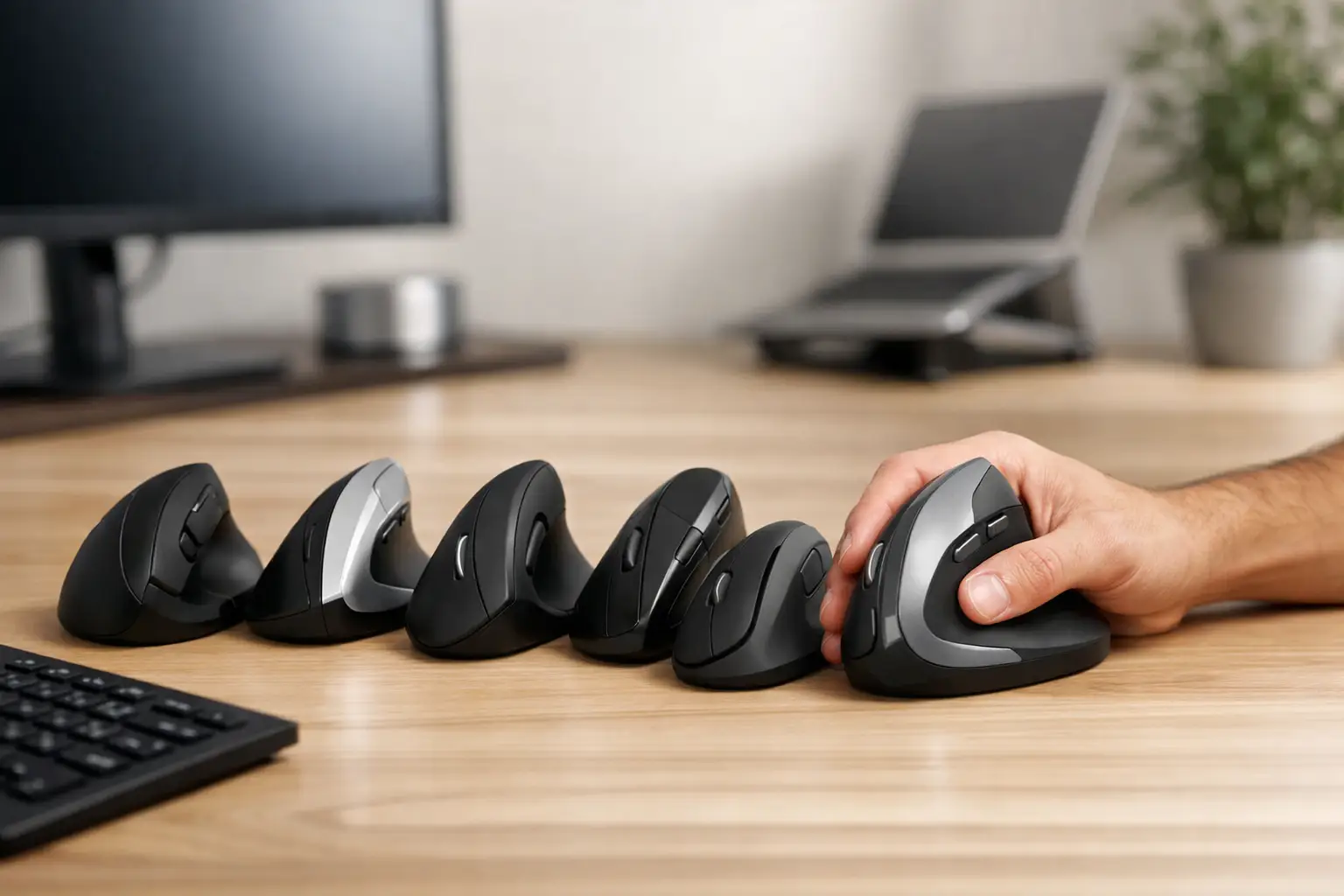
A vertical mouse earns its desk space when your standard mouse leaves your forearm tight after a spreadsheet-heavy afternoon, a photo-editing session, or six straight hours of client work. The best ergonomic vertical mice reduce the need to rotate your forearm palm-down, placing the hand in a more handshake-like position. That can make long sessions feel less punishing. It is not a cure for pain, and it will not compensate for a bad desk setup, but it is one of the highest-leverage hardware changes for mouse-heavy work.
The catch is that vertical mice are not interchangeable. Sensor quality, button placement, hand size, click weight, connection options, and scroll-wheel behavior change whether a mouse becomes a useful daily tool or an expensive object in a desk drawer. Here is the practical shortlist, organized around real work patterns rather than marketing claims.
7 Best Ergonomic Vertical Mice for Different Workflows
1. Logitech Lift: best for most office and hybrid workers
Logitech Lift is the sensible default for small to medium hands. Its 57-degree angle is easy to adapt to, the thumb rest is supportive without forcing an extreme grip, and its quiet buttons suit shared offices and home workspaces. It also supports Bluetooth and Logitech’s USB receiver, with switching across multiple devices.
That makes Lift particularly effective for people who move between a work laptop, personal computer, and tablet. Its scrolling is smooth and controlled rather than ultra-fast, which is usually a benefit for documents, dashboards, and browser-based work. Large-handed users may find it cramped, and power users who depend on a free-spin scroll wheel will want a different model.
2. Logitech MX Vertical: best for larger hands and multi-device desks
The MX Vertical is taller and more substantial than Lift, built for people who find compact ergonomic mice too restrictive. It has a steeper 57-degree design, a rechargeable battery, a dedicated cursor-speed button, and multi-device support. For analysts, operators, and creators juggling a desktop plus laptop, its ability to move across devices can simplify a fragmented workstation.
Its main trade-off is adaptation. The taller body feels secure once your grip settles, but the button positions can initially feel less natural than a conventional mouse. It is also not the first choice for fast competitive gaming. This is a work mouse, designed for deliberate pointer control and long desk blocks.
3. Anker Wireless Vertical Mouse: best budget test run
Anker’s wireless vertical mouse is the low-risk entry point for anyone unsure whether the category will work for them. It uses a simple USB receiver, has standard forward and back buttons, and costs far less than premium models. For a second desk, occasional travel, or a first ergonomic experiment, it does the job.
Expect basic materials, a modest sensor, and no Bluetooth switching. The cursor can feel less refined on high-resolution displays or detailed design tasks. Still, the value is clear: spending a modest amount to test a different hand position is smarter than buying an advanced model based on a productivity fantasy.
4. Evoluent VerticalMouse D: best for full-size ergonomic support
Evoluent has focused on vertical mouse design longer than most mainstream brands, and the VerticalMouse D reflects that specialization. Its shape offers more surface area for the hand, with a pronounced thumb rest and a form that can reduce the urge to pinch the mouse between thumb and fingers. It is a compelling option for larger hands and users who have already decided that a true vertical design works for them.
The design is more functional than minimalist. Its button layout, finish, and software experience can feel less polished than Logitech’s ecosystem. But a desktop peripheral should be judged by how it supports eight hours of use, not by whether it looks good in a product photo. For sustained office work, the fuller grip can be the point.
5. Kensington Pro Fit Ergo Vertical: best for simple business deployments
The Kensington Pro Fit Ergo Vertical is a strong fit for straightforward Windows and business-laptop environments. It typically prioritizes dependable wireless operation, a traditional button layout, and a familiar scroll experience over elaborate software features. That restraint is useful when the goal is to equip a small team without creating an IT support project.
It works best for standard productivity tasks: email, web apps, documents, accounting platforms, and point-of-sale back offices. Designers and video editors may want more granular customization. For a manager standardizing workstation hardware, however, the clean learning curve is an advantage.
6. Delux M618XSD: best for adjustable-angle experimentation
The Delux M618XSD stands out because its adjustable angle lets users test a range of hand positions instead of committing immediately to one fixed posture. That matters when discomfort is specific. Someone with thumb irritation, limited wrist rotation, or an unusually low desk may not benefit from the same angle that feels perfect for a coworker.
Adjustability introduces complexity. The device is bulkier, and more moving parts mean more potential friction in a travel setup. Yet for a fixed home office where you can spend a week dialing in fit, it offers a practical route to a more individualized setup. Treat it as workstation equipment, not a casual laptop accessory.
7. R-Go HE Break Mouse: best for behavior change, not just posture
The R-Go HE Break Mouse adds a different layer to ergonomics: reminders to pause. Some versions use an indicator light to encourage breaks based on how long you have been working. That is useful because posture often degrades less from one bad movement than from too many uninterrupted hours of acceptable movements.
The mouse will appeal to professionals who respond well to visible systems and prompts. Others will find the feedback distracting or unnecessary. Its value depends on whether you need hardware to interrupt your momentum. If your calendar already protects breaks and you reliably follow it, a simpler mouse may be the better purchase.
How to Choose the Best Ergonomic Vertical Mouse for Your Setup
Start with hand size, not brand reputation. Measure from the base of your palm to the tip of your middle finger, then compare that number with each manufacturer’s sizing guidance where available. A mouse that is too small forces your fingers to curl and your grip to tighten. One that is too large makes the buttons feel like a reach. Both outcomes undermine the reason to change mice in the first place.
Next, match the connection method to your actual machine count. Bluetooth keeps USB ports free and is convenient for modern laptops. A dedicated receiver is usually simpler and can be more reliable in offices crowded with wireless devices. If you move between machines every day, device switching is worth paying for. If the mouse will live beside one desktop monitor, it is not.
Sensor performance deserves more attention than it gets. You do not need gaming-grade specifications to manage email, but a precise sensor reduces the tiny corrective motions that make detailed work tiring. Choose a mouse with adjustable DPI if you work on a large or high-resolution display. Lower sensitivity can improve control for retouching and spreadsheets, while a faster setting helps on ultrawide monitors.
Also assess software only after the physical fit is right. Reassigning side buttons to browser back, push-to-talk, copy, paste, or app-specific commands can save repetitive clicks. But shortcut software cannot rescue a mouse that makes your thumb ache. Hardware comfort first, workflow customization second.
A Vertical Mouse Works Only Inside a Better Desk System
Do not evaluate a vertical mouse in isolation. Your elbow should generally sit near your side, with shoulders relaxed and the mouse close enough that you are not reaching forward all day. If your keyboard is too high, your chair lacks arm support, or your monitor forces your neck down, changing the mouse may provide only partial relief.
Give the transition at least five working days before making a final judgment. Cursor movement can feel awkward on day one because you are unlearning years of wrist-led habits. Start with email, browsing, and routine admin work. Avoid making a high-stakes design deadline or competitive game your first vertical-mouse session.
The right choice is not necessarily the most expensive one. Lift is the clean answer for many hybrid workers, MX Vertical suits bigger multi-device setups, and Anker makes the category accessible. The smarter move is to buy for the hand, the desk, and the work you actually repeat every day. A peripheral becomes ergonomic when it helps you maintain a better system, not when its box makes the claim.